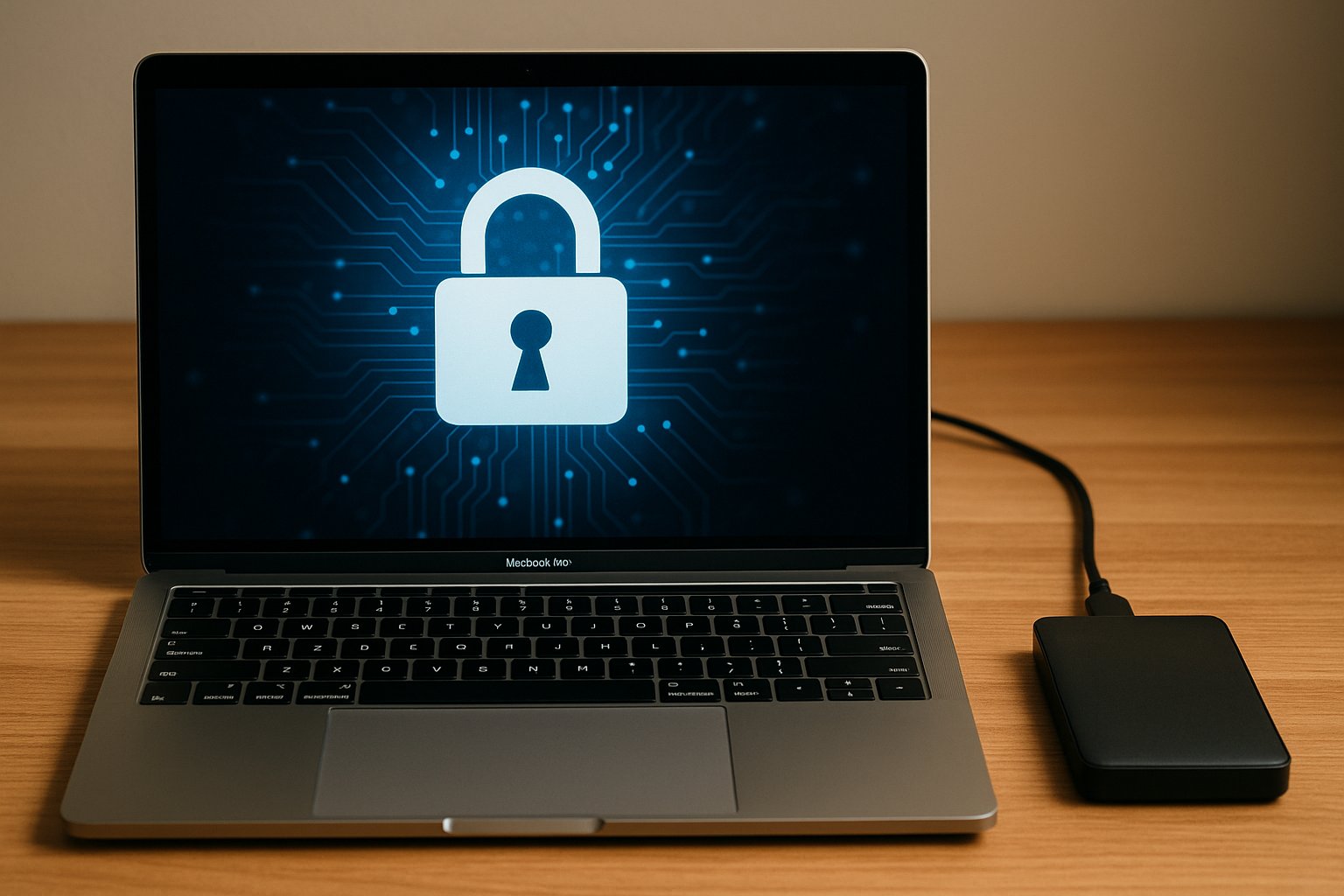
Having a Mac backup is no longer optional — it is a necessity. Hardware failures, human errors or even cyberattacks can put your most important files at risk. In this article you will learn how to back up on Mac, what options exist, and how to configure Time Machine or services like iCloud and external drives for peace of mind.
Real case: how a client lost their data for lack of a Mac backup
One of our clients, a creative professional with a MacBook, lost all their projects overnight by relying solely on local storage. A failure in the internal disk rendered the system unusable and, with no automatic backup configured, they faced total information loss.
Time Machine on Mac: how to activate, configure and use it well
Time Machine is Apple’s native tool for making Mac backups. Configuring it is very simple:
- Connect an external drive to your Mac.
- Open System Preferences > Time Machine.
- Select the drive as backup destination.
- Enable automatic backup.
Time Machine makes hourly backups, keeps daily ones for the past months and allows you to restore macOS or individual files quickly.
Other Mac backup options: iCloud, external drives and more
- iCloud: ideal for documents and photos; syncs across all your Apple devices.
- External drives: hard disks or SSDs connected via USB/Thunderbolt, fast and reliable.
- NAS or servers: advanced option for businesses or professionals with large data volumes.
- Cloud services (Google Drive, Dropbox, OneDrive): useful as additional backup and for remote access.
Recommended backup strategies by user type
- Home users: Time Machine + iCloud is sufficient.
- Creative professionals: Time Machine + dedicated external drive + third-party cloud.
- Businesses: hybrid systems with NAS and encrypted cloud backups.
The key is applying the 3-2-1 rule: 3 copies, on 2 different media, with 1 external or cloud copy.
In the corporate environment, managing security and Apple device backups must integrate with MDM (Mobile Device Management) solutions. This allows centralised control of security policies, ensuring backups are performed correctly and reducing human risk.
How to restore your Mac from a backup step by step
- Restart the Mac and enter recovery mode (Cmd + R).
- Select Restore from Time Machine.
- Choose the desired backup.
- Follow the wizard to restore files or the entire system.
Lessons learned: errors we no longer let our clients make
- Trusting only the internal disk.
- Not automating backups.
- Using a single backup method.
- Delaying Time Machine configuration “for tomorrow”.
Today, every new SETEK client receives a Mac backup plan adapted to their usage, ensuring a preventable data loss never happens again.
Knowing how to back up on Mac is not just a technical matter — it is an investment in peace of mind. Whether you use Time Machine, iCloud or external drives, the important thing is having a reliable, tested plan. Today, MDMs eliminate the need to maintain configuration backups: simply switching on the Mac automatically receives all corporate settings and apps.